How to Fill Out a PDF Form Without Printing
Why can some PDF forms not be filled in?
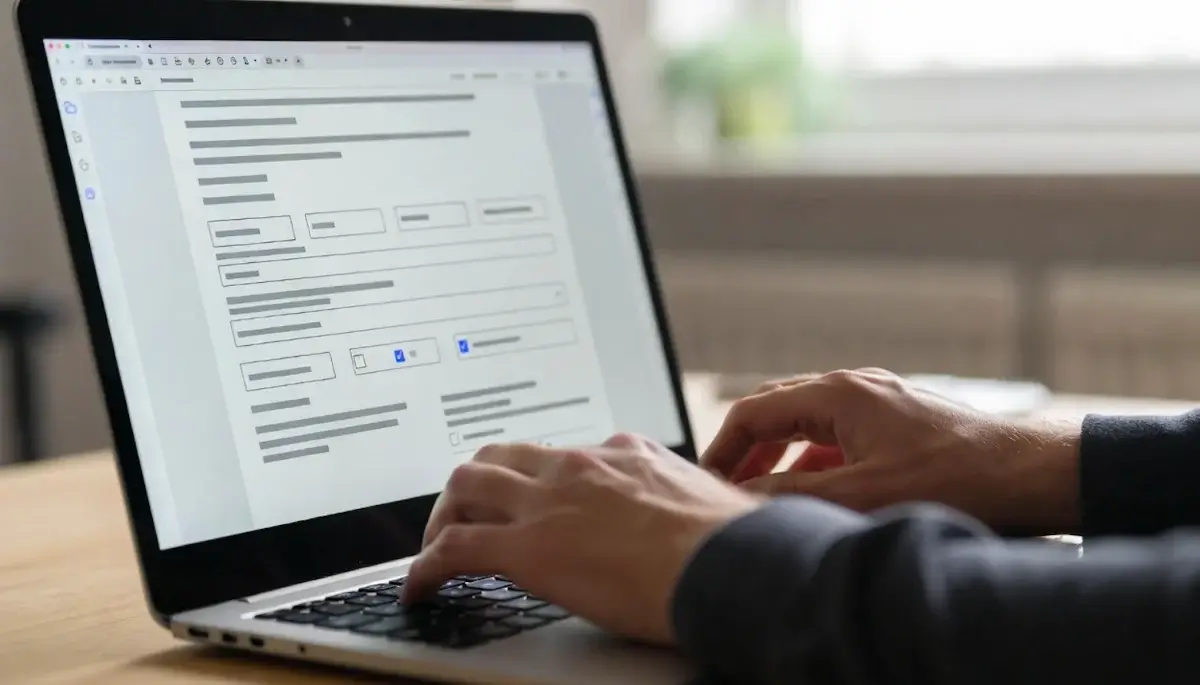
Not every PDF form is interactive. Some are flat — just an image of a form with no fields you can click and type into. Government offices, schools, and employers hand out flat PDFs all the time because the file was scanned from paper or exported without form fields.
Interactive PDFs have clickable text boxes, checkboxes, and dropdowns built in. Any PDF viewer can handle these. Flat PDFs look the same but have nothing to click. You need a tool that places text on top of the document.
Either way, you can fill out both types on your computer or phone without printing anything.
How to fill out a PDF form online in 3 steps
The fastest approach for a flat PDF: use a browser-based PDF tool. No install, no account. Here is how:
- Open the tool — go to the Sign PDF tool on OpenPDFTools. Drag your file onto the page or click to upload.
- Add text where you need it — click anywhere on the form and type. Move and resize text boxes to match the form fields. You can add checkmarks, dates, or a signature in the same session.
- Download the filled form — save the completed PDF to your device. You get a new copy with your entries baked in. The original stays untouched.
A typical one-page form takes about 2 minutes. With a browser-based tool, your file never leaves your device — processing runs entirely in your browser’s memory.
How to fill PDF forms on iPhone, Android, Windows, and Mac
- iPhone or iPad — open the PDF in the Files app, tap the markup icon (pen tip), then tap + to add text. This works for flat PDFs. Interactive forms fill automatically in most PDF viewers.
- Android — Google Drive opens and fills interactive PDF forms. For flat PDFs, open a browser-based tool like OpenPDFTools directly on your phone.
- Windows — Microsoft Edge has a built-in PDF viewer that handles interactive forms. For flat PDFs, click ’Add text’ in Edge and type directly on the form.
- Mac — Preview fills interactive forms natively. For flat forms, use the markup toolbar: open the PDF, click the markup icon, select Text, and place text boxes where needed.
Browser-based tools vs. cloud tools vs. desktop software
| Feature | OpenPDFTools (browser) | Cloud tools (Adobe, Smallpdf) | Desktop software |
|---|---|---|---|
| File privacy | File stays on your device | Uploaded to remote servers | Stays local |
| Cost | Free, no limits | Free tier with restrictions | $20-60/month |
| Registration | Not required | Often required | License key needed |
| Works on phone | Yes (any browser) | Yes (app or browser) | No |
| Flat PDF support | Yes (text overlay) | Yes | Yes |
Tips for filling out PDF forms without issues
- Check if the form is interactive first — click on a field. If a cursor appears, the form has built-in fields and you can type directly without any extra tools.
- Match the font size — most government and official forms use 10-12 point text. Keeping your entries at a similar size makes the filled form look consistent.
- Save a blank copy — keep the original empty form so you can start over or fill it for someone else later.
- Review every page before downloading — missed fields on multi-page forms are the most common reason applications get sent back.
You do not need Adobe Acrobat to fill out a PDF form. Every major operating system now includes basic form-filling tools, and free browser-based editors handle the rest — including flat forms that your built-in viewer cannot.
Frequently Asked Questions
How do I fill out a PDF form that is not fillable?▾
Can I fill out a PDF form on my phone?▾
Does filling out a PDF form change the original file?▾
Is it safe to fill out PDF forms with personal information online?▾
Can I add a signature after filling out a PDF form?▾
Related Articles
How to Convert PDF to Word for Free
Learn how to convert PDF documents to editable Word files without uploading to any server. Discover the best methods for preserving formatting during conversion.
5 min readHow to Merge PDF Files - Complete Guide
A complete guide to combining multiple PDF files into one document. Learn different approaches, best practices, and tips for organizing merged documents.
5 min readJPG to PDF: Convert Images to PDF in Seconds
Turn your photos and images into professional PDF documents. Learn how to convert single or multiple JPG files to PDF with optimal quality settings.
4 min read