PDF Fonts Look Wrong? How to Fix Missing or Substituted Fonts
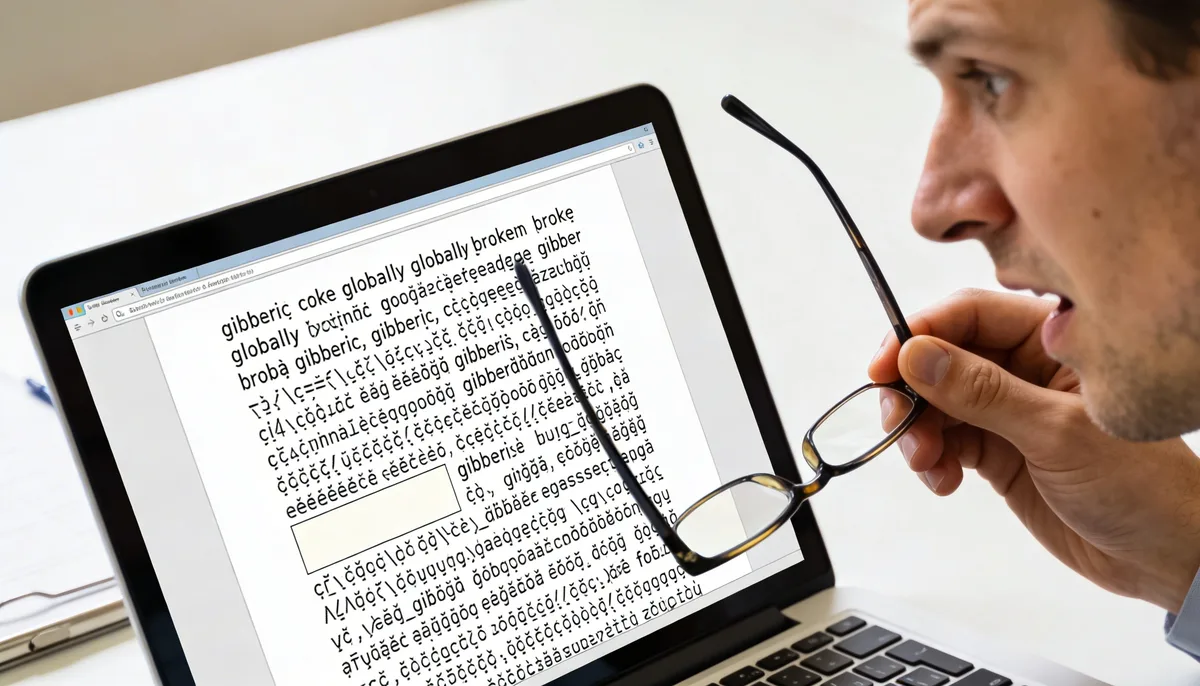
If a PDF does not include embedded fonts, another device replaces them with fallback fonts. That causes spacing errors, broken line wraps, and text that looks wrong. The reliable fix is to re-export with Embed all fonts enabled.
What “Missing Embedded Fonts” Means
A PDF can either carry its own font data (embedded) or reference system fonts installed on the viewer device. When font files are not embedded, the PDF reader guesses a replacement. Even similar replacements can break layout.
- Symptoms: letters look wider/narrower, rows break differently, bold/italic looks off.
- Common impact: contracts, invoices, technical docs, and brand templates.
- Root cause: export settings from Word, InDesign, Canva, or old print drivers.
Quick Diagnosis in 60 Seconds
- Open the PDF in Adobe Reader.
- Go to File → Properties → Fonts.
- If you see (Embedded Subset) next to most fonts, this is usually fine.
- If fonts appear without “Embedded”, cross-device substitution is likely.
- Compare the same file on two devices to confirm layout shifts.
7 Practical Fixes
- Re-export from source with full embedding: In Word/PowerPoint, choose PDF options and enable ISO 19005-1 (PDF/A) or font embedding where available.
- Avoid “Print to PDF” when possible: It often strips metadata and can break font handling. Use native Export as PDF instead.
- Use standard fonts for forms: Arial, Times New Roman, Calibri are safer for compatibility.
- Flatten critical pages: If visual accuracy matters more than editable text, convert problematic pages with PDF to JPG and rebuild with JPG to PDF.
- Compress only after font-safe export: First fix fonts, then optimize with Compress PDF.
- For legal/official docs, validate on 2 devices: Desktop + phone is a good minimum check.
- Archive final version as PDF/A: PDF/A preserves visual consistency better for long-term storage.
When Re-Export Is Not Possible
If you no longer have the source file, you still have two fallback options:
- Visual-preservation workflow: Convert to image pages (PDF to JPG) and rebuild to lock the appearance.
- Content-recovery workflow: Convert with PDF to Word, replace fonts, and export a fresh PDF with embedding enabled.
Prevention Checklist for Future PDFs
- Always use Export/Save as PDF instead of generic print drivers.
- Enable embedding or PDF/A in export settings.
- Test one random page at 200% zoom on another device before sending.
- Keep the source file so you can re-export quickly if a client reports issues.
Wrong PDF text display is usually a font-embedding issue, not corruption. Re-export with embedded fonts first; only then do size optimization or conversions.
Frequently Asked Questions
How do I know if fonts are embedded in my PDF?▾
Can I fix missing fonts without the original source file?▾
Why does the PDF look correct on my computer only?▾
Does PDF compression remove fonts?▾
What is the safest format for long-term archiving?▾
Related Articles
PDF Gets Blurry After Compression? 7 Ways to Keep Quality (2026)
Compressed a PDF and now text or images look blurry? Learn exactly why quality drops and how to reduce file size without destroying readability. ✅
6 min readCan't Open PDF on iPhone or Android? 6 Instant Fixes (2026)
Struggling to open a PDF file on your iPhone or Android? Learn why you might see a blank screen and how to view your documents without installing heavy apps. ✅
5 min readScanned PDF Text Is Not Selectable - How to Fix It with OCR
Open a scanned PDF and can't highlight or copy any text? It's an image-only PDF with no text layer. Here's why it happens and how OCR fixes it instantly. ✅
6 min read